Troubleshooting

Table of Contents

Although IGMAS+ is continuously being tested by many users around the world, there could still be a number of bugs and issues.

In the changelog of every release we highlight the issues that have been solved. More information can be found in the release posts.

Feel free to provide us some feedback.


Known issues

Below we list some known issues during installation and running IGMAS+, together with workarounds.

The jar installer does not start

Description

On Windows, if you double-click on the IGMAS-install.jar file and the installer does not start, a common root cause is that another program has stolen the .jar association.

Workaround

Reinstall the Java Runtime Environment or fix the Windows Registry manually. You can also easily fix the problem with Jarfix.

See more information here.

Alternatively, you can run the installer from the command line, as explained in the installation guide


IGMAS+ shortcut does not work

Description

You have installed IGMAS+ and try to run it using the shortcut, but nothing happens.

Workaround

If you have installed IGMAS+ and the shortcut does not work, it is most likely due to the fact that the path to the java executable or the IGMAS+ jar file is not correct.

Windows

On Windows, right click on the shortcut and select Properties. In the Target field, the path should be similar to the following:

C:\Windows\system32\cmd.exe /c "javaw -cp ./igmas-process-wrapper.jar; igmas.process.StartIGMASProcess"

In Start in field, the path should be similar to the following:

C:\Users\<your username>\IGMAS+\bin
Linux

On Linux, right click on the shortcut and select Edit Launcher. In the Command field, the path should be similar to the following:

java -cp ./igmas-process-wrapper.jar igmas.process.StartIGMASProcess

In Working Directory field, the path should be similar to the following:

/home/<your username>/IGMAS+/bin

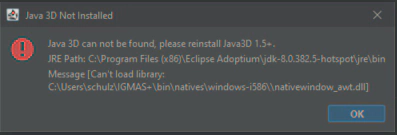
Java 3D Not Installed

Description

On Windows, the following error appears:

Java 3D can not be found, please reinstall Java3D 1.5+

Workarounds

The problem can have different reasons behind it:

JRE version

error_x64

This type of message is related to the fact that the version of JRE that has been installed is wrong. For instance, one could have installed the x86 version of JRE (for a 32-Bit system), but not the x64 (required for a 64-Bit OS), or the version is not 8.

JogAmp libraries missing
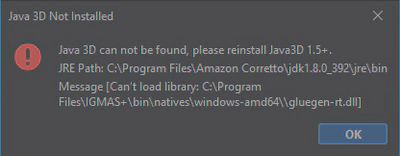
error_jogamp

This message can be related to the fact that you are installing IGMAS+ as a Standard User and not as an Administrator. In some cases Windows can block creation of temporary files created during installation (namely the JogAmp library and its component GlueGen).

If you are not able to install IGMAS+ as Administrator, a workaround for it on 64-Bit Windows would be:

  • Install IGMAS+ as a Standard User.
    The default folder is C:\Users\<your username>\IGMAS+
  • Create a folder named natives under IGMAS+\bin
  • Load jogamp-all-platforms.7z file from the JogAmp archive
  • Unpack the jogamp-all-platforms.7z archive (e.g. with 7-Zip)
  • Put the contents of folder jogamp-all-platforms to IGMAS+\bin\natives
  • Move the folder windows-amd64 from \IGMAS+\bin\natives\lib to \IGMAS+\bin\natives.

Too small font size

Description

On Windows 10/11, when using displays with high resolution and system scaling, the fonts in IGMAS+ can still be too small:
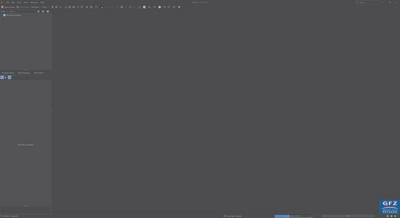
small_fonts

Workaround

  1. Find out the path for the java binary IGMAS+ is using

    1. Start IGMAS+
    2. Open Help -> About
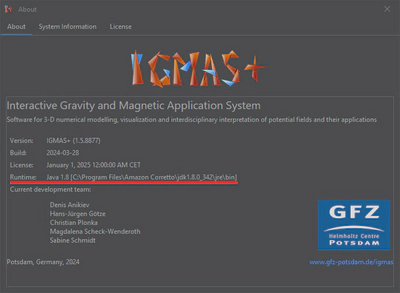
    3. Check the path in Runtime:

    about_runtime

    In this case: C:\Program Files\Amazon Corretto\jdk1.8.0_342\jre\bin

  2. Open File Explorer and navigate to this jre\bin folder

    1. Right click on file java.exe
    2. Click Properties
    3. Go to Compatibility tab
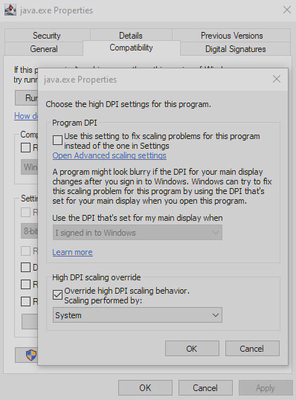
    4. Click Change high DPI settings
    5. Mark checkbox Override high DPI scaling behavior
    6. Select System from the dropdown Scaling performed by
    7. Click OK
    8. Click Apply

    java_scaling_properties

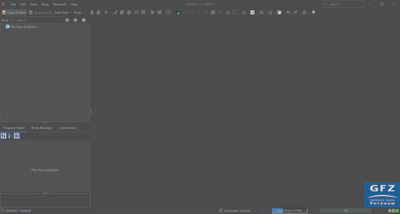
As a result, fonts are scaled:

scaled_fonts


Freezing while loading a model

Description

A model cannot be loaded, IGMAS+ freezes and nothing happens.

Workaround

This can usually happen for a model of a relatively big size.

  • Check if the 64-bit version of JRE is selected in the IGMAS+ JVM Settings (ResearchJVM Settings)
  • Check if the amount of maximum heap size there is optimal. To optimize, click on the Optimized button.
  • Restart IGMAS+ for changes to take effect.

Read more here.


Graphical problem with a 3D View

Description

The model in the 3D View is unfocused and has stripes, model elements are wrongly visualized, or the model is not visible at all.

Workarounds

The problem is always related to the graphical driver but can have different reasons behind it:

Stereo rendering

Graphical problem with a 3D View: stereo rendering error

If the model is unfocused and has stripes like on the image above, most likely it is due to the requirement of the stereo rendering.

Enable force stereo rendering checkbox in the IGMAS+ JVM Settings (ResearchJVM Settings).

Outdated graphics card driver

Graphical problem with a 3D View: visualization error

If model elements are wrongly visualized, like on the image above, most likely it is due to the outdated graphics card driver.

Update the graphics card driver or use a different graphics card (e.g. use a dedicated graphics card if you have two).

Incompatible graphics card

If the model in 3D View is not visible at all, most likely it is due to the incompatible graphics card.

IGMAS+ has issues with certain graphics cards that are not compatible with OpenCL 1.2. For instance, graphics card Intel HD Graphics 4000 is known to have issues like that.

Use a different graphics card (e.g. use a dedicated graphics card if you have two). Any NVIDIA graphics card with an up-to-date driver is recommended, if available.


Problem after changing the theme

Description

After changing the theme in EditOptionsLook & Feel, the graphical interface cannot be handled properly.

Workaround

To regain normal behavior, please restart IGMAS+. After restart, the new theme remains valid.


Mouse issue

Description

When trying to use the mouse wheel or buttons, IGMAS+ seems not to respond as intended to.

Workaround

In some cases, additional mouse software prevents IGMAS+ from working properly. Disabling the mouse software should make the mouse buttons work properly within IGMAS+.


Issue when toggling the sections

Description

The program does not toggle between the sections in the 2D view when pressing Page Up ↥ or Page Down ↧ buttons

Workaround

The view tab is not active. Point the mouse over the 2D View tab and click the left mouse button.


Issue with the clipping planes slider

Description

Clipping plane sliders in the Property Editor Tab of the Clipplanes entry of the Object Tree do not respond, or sometimes only respond on a second try.

Workaround

When you move over from a different part of the window, e.g. from the view or model tree, the first click on the slider activates the slider’s window section. The slider itself is then “grabbed” with the second click and can then move.


Bull’s eye

Description

Due to the algorithm used for the calculation potential field, certain positions of the stations can lead to a so-called bull’s eye effect, which is characterized by a local extreme in the calculated potential field. It is not a bug but a limitation of the algorithm.

Typical bull’s eye problem in a 3D View resulting fom a station grid:

Bull&rsquo;s eye problem in a 3D View

The bull’s eye effect is basically a spike in the calculated potential field:

Bull&rsquo;s eye problem in a 2D View

Workaround

Possible solutions to prevent bull eyes:

  • Avoid model stations inside the model bodies
  • Avoid model stations directly located on edges of the bodies
  • If possible, use irregularly distributed stations and no station grids
  • If using grids, move the stations in X and Y by a very small amount

For instance, if original station coordinates are:

327500,5655000,174,-10.916
332500,5655000,168.477127,-7.957
337500,5655000,163.977127,-5.576
342500,5655000,161.865646,-4.568
347500,5655000,158.865646,-3.828

Change them to:

327500.1,5655000.1,174,-10.916
332500.1,5655000.1,168.477127,-7.957
337500.1,5655000.1,163.977127,-5.576
342500.1,5655000.1,161.865646,-4.568
347500.1,5655000.1,158.865646,-3.828

This will eliminate the bull’s eye effect:

Same model in a 3D View: bull&rsquo;s eye problem is eliminated

Report an issue

If you have a found a bug and want to submit an issue report, please send your request together with a log file to:

See feedback section for more information.